NexLine Meetings: Faster, Smarter, and More Intuitive
A More Connected, User-Friendly Experience.
NexLine Meetings is more intuitive, customizable, and efficient, helping teams connect
effortlessly from anywhere. Whether you're hosting a large meeting or jumping into a quick
check-in, NexLine offers the tools to keep conversations smooth and productive.
NexLine Meetings: Faster, Smarter, and More Intuitive
NexLine is excited to introduce a refreshed Meetings experience designed to make scheduling,
managing, and joining meetings easier than ever. With a cleaner layout, smarter controls, and
new customization options, NexLine Meetings now gives users more flexibility and control
before and during every call.
A More Streamlined Meetings Hub
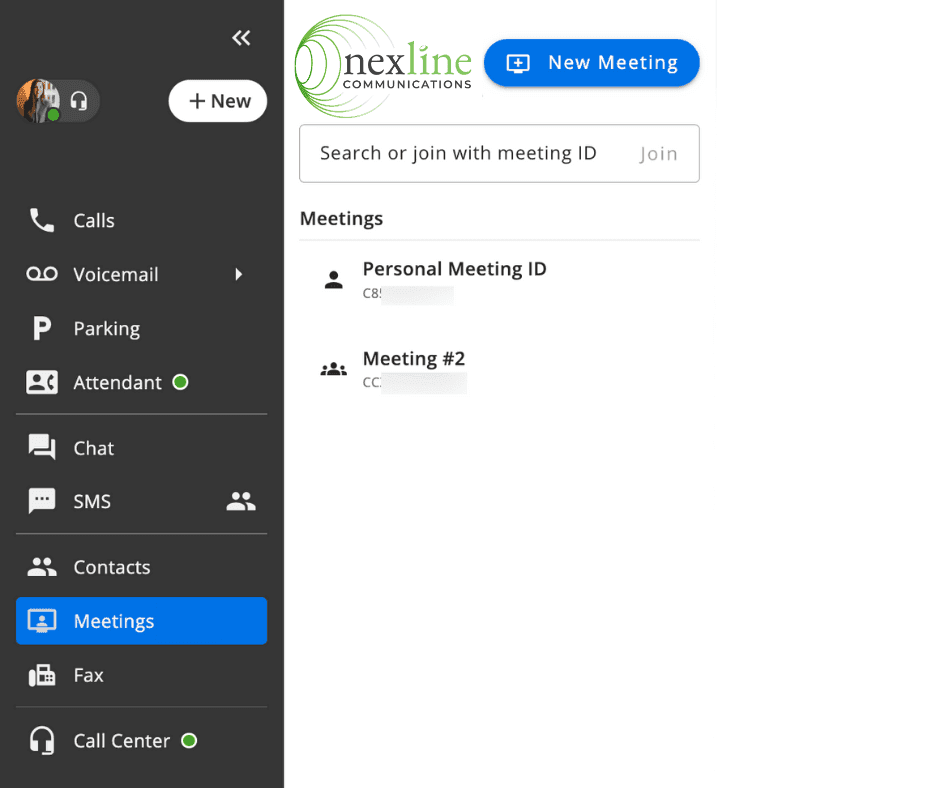
The Meetings tab allows users to quickly view, join, create, and organize meetings in one place.
Every user now has a Personal Meeting ID, creating a permanent personal meeting room that
can be used anytime.
A new search bar makes it simple to find meetings by typing a meeting name or ID. Shared
meetings and incoming invitations automatically display in the user’s Meetings list.
Each meeting preview includes options to copy the Meeting ID or join instantly. Selecting a
meeting opens a details panel showing edit and delete controls (with permission), copy buttons
for Meeting ID, PIN, and invitation link, clickable dial-in numbers, meeting creator information,
creation date, last joined date, and a Waiting Room toggle.
Easier Meeting Creation
Creating a meeting is now more intuitive. Users can set the meeting name, add moderators,
enable or disable a waiting room, and choose whether the meeting is shared with the
organization or private to invited participants. Moderators can edit meeting details at any time.
Smarter Pre-Join Options
Before entering a meeting, users can configure their microphone, camera, virtual background or
blur, invite participants, and access all settings to finalize their setup.
All Settings: Complete Customization
All settings can also be adjusted during the meeting. The Settings panel includes:
Audio Settings
Microphone and speaker selection.
Video Settings
Camera configuration.
Virtual Backgrounds
Choose images or background blur.
Notifications
Manage alerts for reactions, chat messages, participants joining or leaving, lobby entry, and
more.
Profile Settings
Update display name and email.
Keyboard Shortcuts
Enable or disable shortcuts.
General Settings
Adjust pinned participants on stage, hide self-view, show subtitles, and set language.
Improved In-Meeting Controls
During active meetings, participants appear in a right-side panel, and the bottom menu bar
offers quick access to microphone and camera toggles, screen share, chat, reactions,
participant view, tile view, full settings, and leave meeting controls.
Users can also optimize performance using the Performance Slider at the top of the screen,
adjusting the balance between video quality and bandwidth.
Communicate, Collaborate & Connect
Whether you are a fortune 100 company or a small office of 10, find out if we have a solution for your organization.